
How to turn off confirmation comments in Notion
Every time a post is scheduled, Scheduled leaves a comment on your Notion card, for example "Nice work! Your image post is scheduled 🎉". It's a handy way to know everything was picked up, but if you follow your cards, Notion notifies you each time. You can turn these confirmation comments off, for one calendar or for your whole account.
Which comments are affected?
When confirmation comments are off, Scheduled no longer posts:
- "Nice work! Your post is scheduled 🎉" when a post is scheduled
- "Got your update!" when you edit a card that's already scheduled
- "Your post is going to be published 🔥" when the date is imminent
- the "Published to N platforms" recap with the links, for a post published on several networks
- "New Notion card created" when an extra card is created after publishing
Turn off comments for one calendar
- Open your calendar in Scheduled.
- Go to the Configuration tab.
- In the Options block, turn off Confirmation comments.
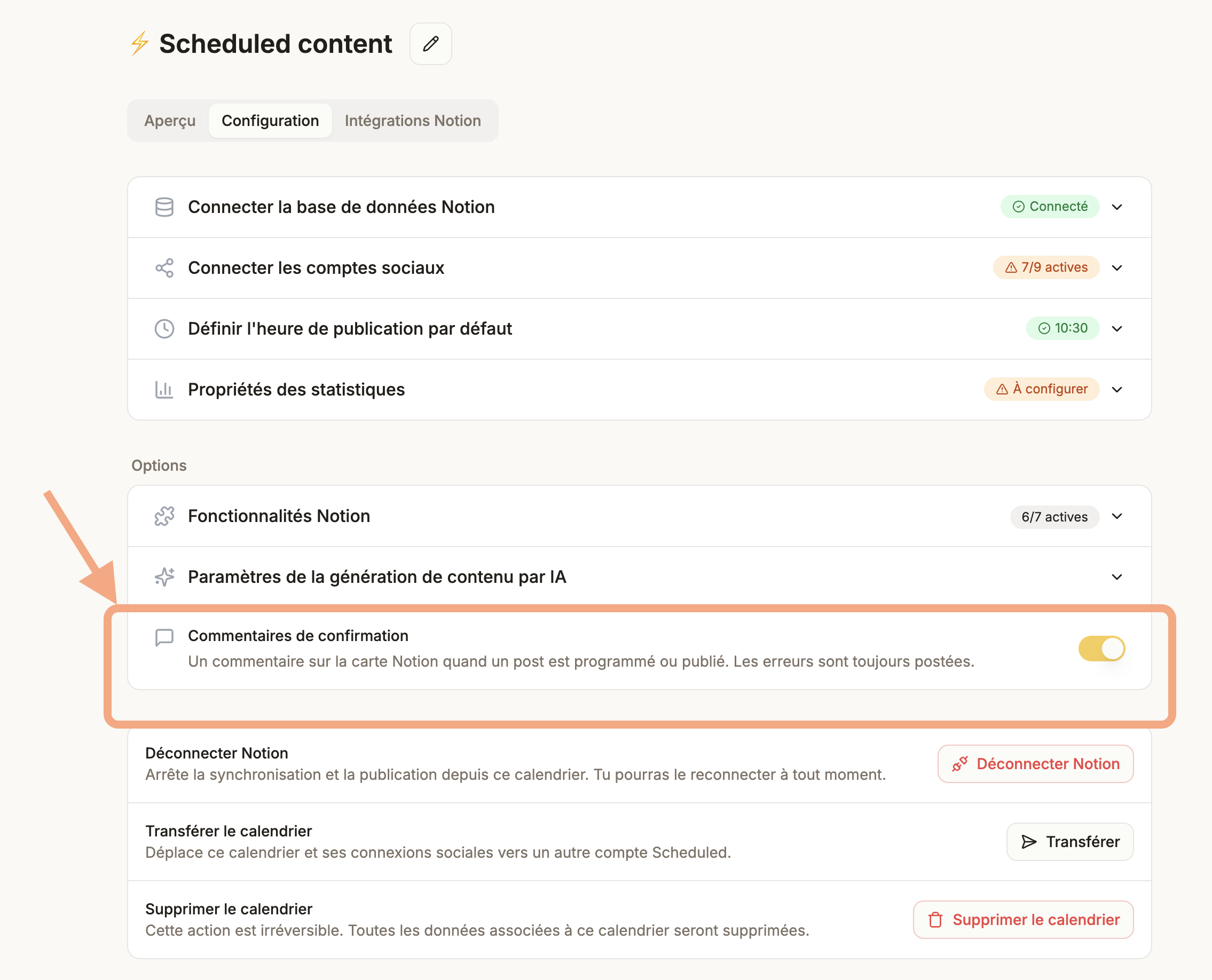
It's saved right away and only affects this calendar. Handy if you manage several calendars and want to keep confirmations on some of them only.
Turn off comments for your whole account
To turn them off everywhere at once:
- Click Settings in the left menu.
- Scroll down to the Notion confirmation comments card.
- Turn off Confirmation comments on all calendars.
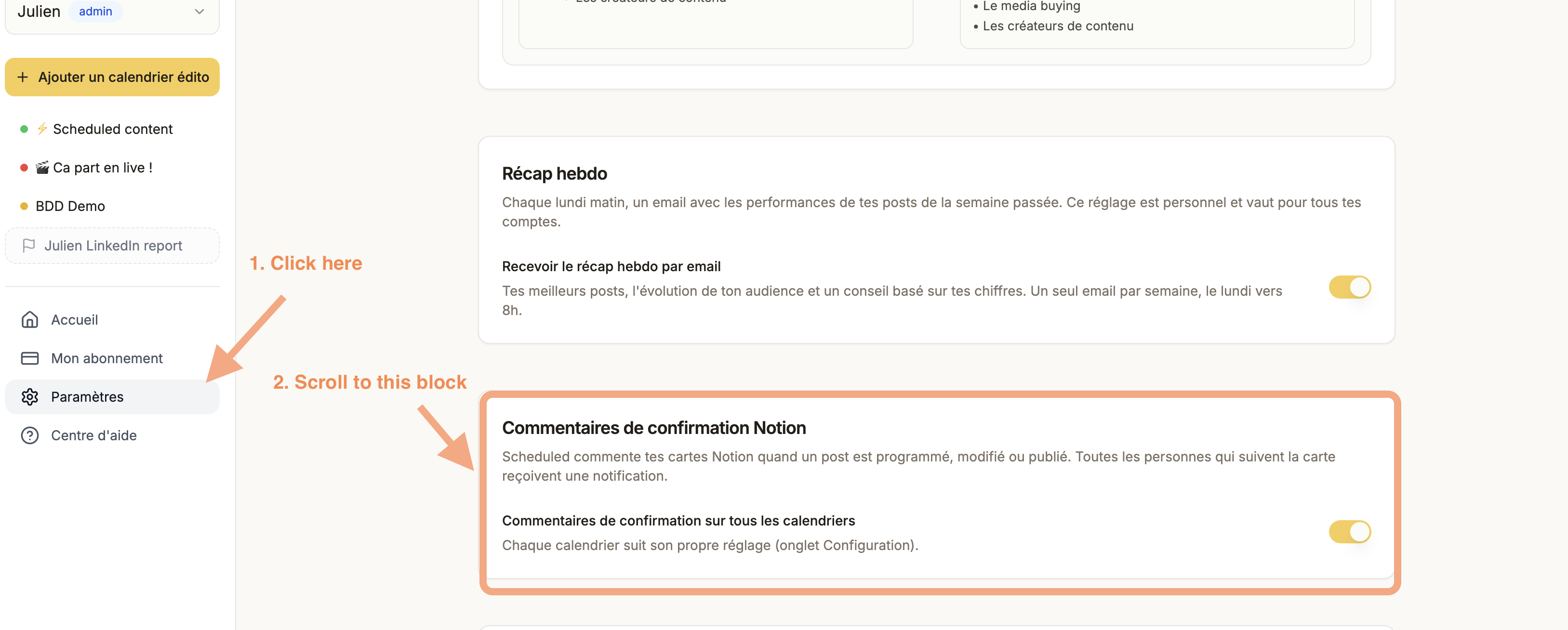
As long as this setting is off, no calendar in the account posts confirmation comments, whatever its own setting. In each calendar, the switch then shows greyed out.
If you turn it back on, each calendar gets back the choice it had before: nothing is lost.
Key takeaways
- Confirmation comments can be turned off per calendar (Configuration tab, Options block) or for the whole account (Settings).
- The account setting takes priority over the calendars' settings, without erasing them.
- Errors and failed publications are always commented on your card.
Updated on: 15/11/2026
Thank you!